Wazuh file integrity monitoring is configured in the <syscheck> section on the agent, either locally or through an agent group’s shared configuration. You list the paths in <directories>, optionally mark them realtime="yes" or whodata="yes", restart the agent, and the results appear under Endpoint security in the dashboard. FIM is enabled and preconfigured by default in Wazuh 5.0, so the real work is scoping it to what you actually care about rather than turning it on.
What you need
- An enrolled, Active agent. If yours is not, see installing the agent on Linux or on Windows.
- Root or Administrator on the endpoint, or edit rights on an agent group on the manager.
- For who-data on Linux, either
auditdinstalled or a kernel at version 5.8 or higher for the eBPF provider.
The Linux path below, including the real-time watch and the events it produced, was exercised on a 5.0.0-beta5 lab. The Windows and registry sections come from the documentation; no Windows endpoint was tested.
Where FIM is configured
FIM runs on the agent, so its configuration lives in the agent configuration file:
| Platform | Agent configuration file |
|---|---|
| Linux | /var/ossec/etc/ossec.conf |
| Windows (64-bit) | C:\Program Files (x86)\ossec-agent\ossec.conf |
| macOS | /Library/Ossec/etc/ossec.conf |
For anything past a lab, put it in the group instead, at /var/wazuh-manager/etc/shared/<GROUP_NAME>/agent.conf on the manager, inside an <agent_config> element. The documentation is explicit about precedence: if a directory is specified both centrally and in the agent’s own file, the centralised configuration wins. The full mechanics are in agent groups and centralised configuration.
Watch a directory
The minimum configuration is a path. Add it to <syscheck> and restart the agent.
<syscheck>
  <directories>/etc/nginx</directories>
  <directories>/usr/local/bin</directories>
</syscheck>
Restart the agent to apply it:
systemctl restart wazuh-agentOn Windows, restart the service:
Restart-Service WazuhSvcTwo details from the reference worth knowing before you build a list. Wildcards * and ? work in paths, reloaded on each scheduled scan, so C:\Users\*\Downloads is legal. And the module monitors files, not directories: creation, modification and deletion of files inside the watched path generate events, but directory creation, modification and deletion do not.
Control what is recorded, and what is ignored
The <directories> element takes attributes that decide which attributes of each file are tracked. check_all is on by default and covers the hashes, size, ownership, permissions, modification time and inode. You can switch individual ones off:
<syscheck>
  <directories check_all="yes" check_sha1sum="no">/etc/nginx</directories>
</syscheck>
Order matters in a way that surprises people. When two attributes modify the same thing, the last one written wins, so check_all="no" check_mtime="yes" still tracks modification time, while check_mtime="yes" check_all="no" does not.
Exclusions use <ignore>, one path per line, with a simple regex form for extensions:
<syscheck>
  <ignore>/etc/nginx/nginx.pid</ignore>
  <ignore type="sregex">.log$|.tmp$</ignore>
</syscheck>
Ignored paths are still scanned; the results are simply not reported.
Scheduling
The default scan interval is 43200 seconds, twelve hours, set globally with <frequency>. You can shorten it, or pin scans to a quiet window with <scan_time> and <scan_day>:
<syscheck>
  <scan_time>10pm</scan_time>
  <scan_day>saturday</scan_day>
</syscheck>
Scheduled scans are also the documented answer to finding floods on frequently written files.
Turn on real-time monitoring
Real-time monitoring reports a change when it happens rather than at the next scan. It is a per-directory attribute, available on Linux and Windows:
<syscheck>
  <directories realtime="yes">/etc/nginx</directories>
</syscheck>
Two documented constraints. Real time applies to directories, not individual files. And the directory has to exist when the agent starts: if the path is missing, FIM ignores it until a later agent restart finds it. Real-time detection also pauses during a scheduled scan and resumes when the scan finishes.
Who-data: which user and which process
Who-data adds attribution to the change. Turn it on per directory with whodata="yes", and choose a provider on Linux.
Linux, audit provider
The default. It uses the Linux Audit subsystem, so auditd has to be installed, and the audispd plugins package is needed for audit 3.1.1 and later.
<syscheck>
  <directories check_all="yes" whodata="yes">/etc</directories>
  <whodata>
    <provider>audit</provider>
  </whodata>
</syscheck>
One check catches most failures. Many distributions ship an audit rule that stops processing of later rules, which silently suppresses all who-data:
auditctl -l | grep taskIf the output shows -a never,task, remove it from /etc/audit/rules.d/audit.rules, then restart auditd and the agent. After the agent restarts, confirm Wazuh installed its own rule:
auditctl -l | grep wazuh_fimThe documented output for a watch on /etc is auditctl -w /etc -p wa -k wazuh_fim. The agent removes that rule when the service stops.
Linux, eBPF provider
The eBPF provider pulls FIM events straight from kernel programs and drops the dependency on auditd. It hooks vfs_open, security_inode_setattr and vfs_unlink, and passes events to user space through a kernel ring buffer.
<syscheck>
  <directories whodata="yes">/etc/ssh/sshd_config</directories>
  <whodata>
    <provider>ebpf</provider>
    <queue_size>50000</queue_size>
  </whodata>
</syscheck>
It requires kernel 5.8 or higher, because the ring buffer structure does not exist before that. If you configure ebpf on an older kernel, the module falls back to audit mode. Do not configure both providers: only the last one configured takes effect, and it applies to every who-data directory on that agent.
The <queue_size> tuning matters here more than with audit. eBPF detects events fast enough that a bulk delete can overrun the default queue, and a full queue loses events. Raising it costs agent memory.
Windows
Who-data on Windows uses the local audit policy and the SACLs on the monitored directories, and <windows_audit_interval> sets how often the agent re-checks that they are still correct. The default is 300 seconds. The configuration is the same attribute:
<syscheck>
  <directories whodata="yes">C:\test</directories>
</syscheck>
Monitor the Windows registry
Registry monitoring uses <windows_registry> in the same <syscheck> block, one key per line, and runs on scheduled scans.
<syscheck>
  <windows_registry>HKEY_LOCAL_MACHINE\Software\Classes\batfile</windows_registry>
  <windows_registry arch="both">HKEY_LOCAL_MACHINE\System\CurrentControlSet\Services</windows_registry>
  <windows_registry recursion_level="3">HKEY_LOCAL_MACHINE\SYSTEM\Setup</windows_registry>
  <registry_ignore>HKEY_LOCAL_MACHINE\Security\Policy\Secrets</registry_ignore>
  <registry_ignore type="sregex">\Enum$</registry_ignore>
</syscheck>
recursion_level for registry keys accepts 0 to 512, which is a different range from the one that applies to <directories>. Setting it to 0 reports only values directly in the monitored key. The arch attribute selects the 32-bit view, the 64-bit view or both.
Registry keys are where persistence lives, so the run keys and the services hive are the two places worth watching on every Windows endpoint you own.
Where the results live
FIM produces two different kinds of data, and conflating them causes a lot of confusion.
State is the current picture of every monitored file: path, hashes, size, owner, modification time. It is kept in the stateful indices on the indexer:
| Index | Contents |
|---|---|
wazuh-states-fim-files |
File metadata for monitored files |
wazuh-states-fim-registry-keys |
Monitored Windows registry keys |
wazuh-states-fim-registry-values |
Monitored Windows registry values |
There is also a local copy on each endpoint, an SQLite database at /var/ossec/queue/fim/db on Linux, C:\Program Files (x86)\ossec-agent\queue\fim\db on Windows and /Library/Ossec/queue/fim/db on macOS, plus a synchronised per-agent copy managed by wazuh-db under /var/wazuh-manager/queue/db.
Changes are events. They travel through the normalization engine, get mapped to Wazuh Common Schema fields, and become findings when a detection rule matches. The mapping you will query against most often:
| FIM field | Wazuh Common Schema field |
|---|---|
path |
file.path |
size |
file.size |
mtime |
file.mtime |
owner |
file.owner |
permissions |
file.permissions |
sha256 |
file.hash.sha256 |
agent.id |
wazuh.agent.id |
agent.name |
wazuh.agent.name |
Who-data adds the actor: user.name and user.id for the login user, user.effective.name and user.effective.id for the effective user, which becomes root when a command runs under sudo.
Make a change and read it
Here is the whole loop on the beta5 lab: a watched directory, three file operations, and the log lines that prove real-time monitoring started.
grep -n lab-fim /var/ossec/etc/ossec.conf79: <directories check_all="yes" realtime="yes">/etc/lab-fim</directories>echo "ServerName lab.example" > /etc/lab-fim/app.conf
echo "ServerName changed.example" > /etc/lab-fim/app.conf
rm /etc/lab-fim/app.conf2026/09/23 02:47:26 wazuh-syscheckd: INFO: Started (pid: 6878).
2026/09/23 02:47:26 wazuh-syscheckd: INFO: (6016): Directory set for real time monitoring: '/etc/lab-fim'.
2026/09/23 02:47:26 wazuh-syscheckd: INFO: (6000): Starting daemon...
2026/09/23 02:47:26 wazuh-syscheckd: INFO: (6010): File integrity monitoring scan frequency: 43200 seconds
2026/09/23 02:47:26 wazuh-syscheckd: INFO: (6008): File integrity monitoring scan started.
2026/09/23 02:47:28 wazuh-syscheckd: INFO: (6009): File integrity monitoring scan ended.
2026/09/23 02:47:28 wazuh-syscheckd: INFO: (6012): Real-time file integrity monitoring started.Two codes to remember. 6016 confirms a specific directory was accepted for real-time watching, and 6012 confirms the watcher is running. If 6016 is missing for a path you configured, the path did not exist when the agent started.
What the event looks like
Three events arrived, one per operation. This is the modification, trimmed:
{
 "@timestamp": "2026-09-23T02:48:14.636Z",
 "event": {
  "category": [
   "file"
  ],
  "dataset": "wazuh.fim",
  "kind": "event",
  "action": "modified",
  "type": [
   "change"
  ],
  "outcome": "success"
 },
 "file": {
  "gid": "0",
  "group": "root",
  "hash": {
   "md5": "a451c709a02d3987e5e701d7a725aec9",
   "sha1": "20af94413b59d571a2318154c625039585154d7a",
   "sha256": "f998320cbcd259172781e6efd88d8c8ea25f84168a5c11ba37873c119c82e0a7"
  },
  "inode": "494543210",
  "mode": "realtime",
  "owner": "root",
  "path": "/etc/lab-fim/app.conf",
  "size": 27,
  "uid": "0",
  "extension": "conf",
  "directory": "/etc/lab-fim"
 },
 ...
}
event.action is created, modified or deleted, and file.mode records which FIM mode caught it. The previous hashes and sizes are not lost: they stay inside event.original, along with a changed_fields list naming exactly what moved, in this case file.size, file.mtime and the three hashes. That is the field to read when you want to know whether a change was cosmetic.
What the finding looks like
The wazuh-fim detector ran and produced findings for the created and modified events. This is the creation finding, trimmed to its rule block:
{
 "rule": {
  "sigma_id": "ca67c993-7547-5e46-92f8-3711b69d969c",
  "level": "low",
  "compliance": {
   "iso_27001": [
    "A.12.4.1",
    "A.12.6.1",
    "A.16.1.2"
   ],
   ...
   "gdpr": [
    "IV_32.1.a",
    "IV_33.1"
   ]
  },
  "mitre": {
   "technique": {
    "name": [
     "Ingress Tool Transfer",
     "Masquerading"
    ],
    "id": [
     "T1105",
     "T1036"
    ]
   },
   "tactic": {
    "name": [
     "Persistence",
     "Stealth"
    ],
    "id": [
     "TA0003",
     "TA0005"
    ]
   }
  },
  "id": "ca67c993-7547-5e46-92f8-3711b69d969c",
  "title": "Wazuh FIM - File created - /etc/lab-fim/app.conf",
  ...
 }
}
Three things to take from that. The finding carries both id and sigma_id, holding the same value, so either one works as a filter. The severity is a word. And every shipped rule comes with a compliance block and a MITRE mapping attached, which is what makes the Regulatory Compliance pages populate without any work from you. The trimmed section holds eight more frameworks, ten in all: pci_dss, hipaa, tsc, nis2, nist_800_171, fedramp, nist_800_53 and cmmc. File creation is low; the modification finding for the same file was medium and mapped to Data Manipulation and Masquerading instead.
Then open the dashboard and go to Endpoint security, File Integrity Monitoring. Three tabs:
- Dashboard gives the overview across all agents, or for one endpoint you select.
- Inventory lists every file FIM has indexed, with path, modification date, owner, UID and size. Click an entry for its full attributes.
- Findings shows the changes that matched a rule, with the agent name, the file path, the event type, the rule title and the severity.
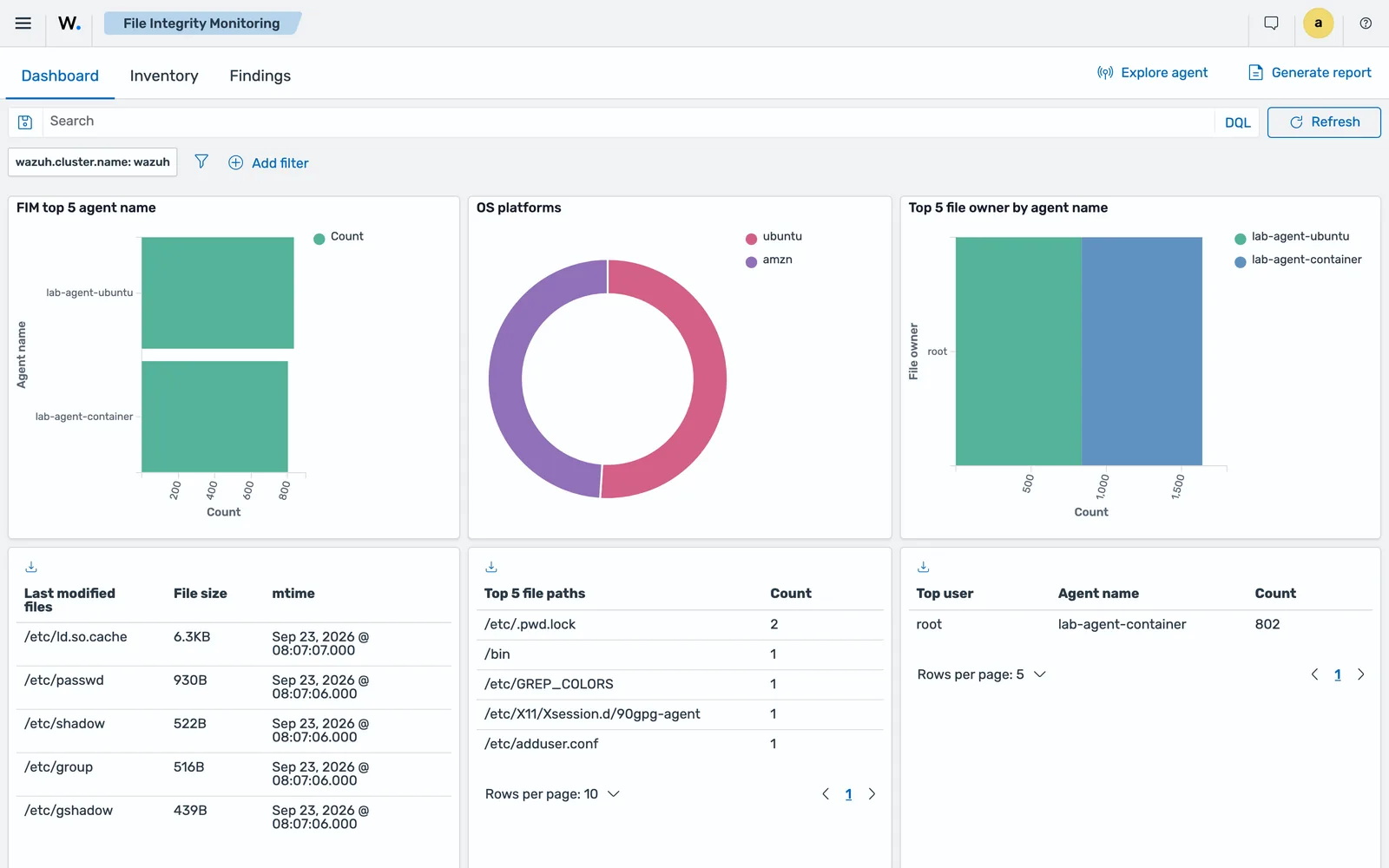
Expect the Inventory tab and the Findings tab to disagree about this exercise, and correctly so. The file was created, modified and then deleted, so there are three findings and no surviving inventory entry: Inventory holds current state, and the file no longer exists.
If the Inventory tab fills but Findings stays empty, that is a different problem, and not a FIM one. FIM produced the event; nothing matched it. The split between decoding and detection is explained in rules, decoders and severity levels, and writing your own FIM rule is covered in custom detection rules.
Scope FIM before you scale it
Some judgement that the reference pages will not give you.
Start from the question, not the filesystem. “Would I investigate a change here at 2am?” If the answer is no, do not watch the path. A watch list built from a compliance template and never pruned is the most common reason teams stop reading FIM output at all.
Use report_changes sparingly. It records the exact text added or removed, which is genuinely useful for configuration files, but it copies every monitored file to a private location under queue/diff and grows storage. Where a file holds secrets, pair it with <nodiff> so the change is reported without the content:
<syscheck>
  <directories check_all="yes" report_changes="yes">/etc/nginx</directories>
  <nodiff>/etc/nginx/ssl-passwords.conf</nodiff>
</syscheck>
Throttle rather than remove. <max_eps> caps FIM event throughput at 50 events per second by default, and <process_priority> sets the scan process nice value. On a database or build server, tune those before you decide FIM is too heavy.
And do not lower <frequency> fleet-wide to get faster detection. Mark the handful of directories that need speed as realtime, and leave the rest on the twelve-hour cycle.
Common errors
A configured directory is never scanned
If the path was marked realtime="yes" and did not exist when the agent started, the FIM module ignores it until a later agent restart detects it. Create the directory first, then restart the agent.
Who-data produces no user information on Linux
The usual cause is the -a never,task rule in the audit configuration, which halts processing of subsequent audit rules. Check with auditctl -l | grep task, remove the rule from /etc/audit/rules.d/audit.rules, and restart both auditd and the agent. If the Wazuh rule itself is missing from auditctl -l | grep wazuh_fim, the agent never managed to install it.
eBPF who-data behaves like audit mode
The provider fell back. The documented trigger is a kernel older than 5.8, since the ring buffer structure the module depends on does not exist before that version. Check the kernel version, or set <provider>audit</provider> deliberately.
Events are lost during a mass delete
The who-data queue overflowed. With the audit provider, events beyond <queue_size> are dropped and the documentation notes that the next scheduled scan will still report the change, without the who-data attribution. With eBPF, raise <queue_size> and accept the extra agent memory.
A network path generates nothing
On Windows, UNC paths and mapped network drives are not supported. Configured paths of that kind are ignored and produce no FIM events, in every mode. Install an agent on the file server instead.
A local FIM change has no effect
The group’s shared configuration overrides the local file for the same directory. Edit /var/wazuh-manager/etc/shared/<GROUP_NAME>/agent.conf on the manager, validate it with /var/wazuh-manager/bin/verify-agent-conf, and let the manager distribute it.
Where to go next
The full option list, including <synchronization>, <recursion_level> and the database storage settings, is in the official FIM configuration reference, with the who-data and registry detail on the advanced settings page.
Pair FIM with two things. First, vulnerability detection, so you know whether the binary that changed was also out of date. Second, a lookup on the changed file, which is the VirusTotal and YARA pattern. If a watched path turns noisy, the method for pruning it without going blind is in cutting false positives.
Next: Wazuh Vulnerability Detection Setup.
Files for this lesson
Every file this lesson refers to, exactly as used. Open a file to read it in the browser, or download the set as a zip. Download wazuh-file-integrity-monitoring.zip. The full set for all lessons is at wazuh-tutorial-files.zip.
README.md1.5 KBagent.conf3.7 KBossec.conf.fragment.xml1.5 KB
Frequently asked questions
Where is the Wazuh FIM configuration in 5.0?
In the syscheck section of the agent configuration file, or in the shared agent.conf of an agent group on the manager. FIM is an agent capability, so it is not configured in wazuh-manager.conf. The agent file is /var/ossec/etc/ossec.conf on Linux, C:\Program Files (x86)\ossec-agent\ossec.conf on 64-bit Windows and /Library/Ossec/etc/ossec.conf on macOS.
How often does Wazuh FIM scan?
Every 12 hours by default, set by the frequency option in seconds (43200). You can lower it, schedule scans with scan_time and scan_day, or mark individual directories realtime so changes are reported as they happen instead of at the next scan.
What is who-data in Wazuh FIM?
Who-data records which user and which process changed a file, on top of the change itself. On Linux it uses either the Audit subsystem or an eBPF provider; on Windows it uses the local audit policy and SACLs. Enable it per directory with the whodata attribute.
Where are Wazuh FIM results stored?
File state goes to the wazuh-states-fim-files index, and Windows registry state to wazuh-states-fim-registry-keys and wazuh-states-fim-registry-values. Change events flow through the normalization engine into the event data streams, and become findings when they match a detection rule.
Can Wazuh FIM monitor a network share?
No. On Windows the FIM module monitors local file systems only. UNC paths such as a server share, and mapped drives such as Z:, are ignored and generate no events. The restriction applies to scheduled, realtime and whodata modes alike, and exists to avoid NTLM authentication against remote shares.