The Wazuh agent on Windows is a single MSI covering 32-bit and 64-bit systems. The silent install is the MSI with /q and two properties: WAZUH_MANAGER and WAZUH_REGISTRATION_PASSWORD. Everything else, including the agent name and its group, goes into ossec.conf afterwards, because the 5.0 beta does not document MSI properties for them. Files land in C:\Program Files (x86)\ossec-agent on 64-bit Windows, the service is registered as WazuhSvc, and the agent talks to the manager over HTTPS on port 1517.
Everything on this page below the supported-versions table was run on a Windows 11 Pro endpoint, build 26200, against a 5.0.0-beta5 manager. Where the beta documentation and the package disagree, the package wins and the page says so.
What you need
- A manager the endpoint can reach on 1517/TCP. Build one first with the Ubuntu install.
- Administrator rights on the endpoint.
- The enrolment password, read on the manager with
cat /var/wazuh-manager/etc/authd.pass. - Any non-default group already created on the manager.
Which Windows versions are supported
This deserves a straight answer, and the beta does not give one. Three pages in the 5.0-beta documentation say three different things:
| Source page | What it states |
|---|---|
| Packages list | Windows “10 or later”, 32/64 bits, one MSI |
| Deploying Wazuh agents on Windows endpoints | “Windows XP to the latest versions, including Windows 11 and Windows Server 2022” |
| Agent enrolment requirements | Windows 7 and later; Windows Server 2008 R2 and later |
Server SKUs are not named at all in the packages list. In practice, Server 2019 and Server 2022 share a build lineage with the client releases the docs do name, so the agent is very likely fine there. Likely is not a deployment plan. Test your oldest supported build in a lab before you promise coverage, and re-read the packages list at general availability, when this should settle.
The build behind this lesson is Windows 11 Pro 26200 on ARM64, which the manager reported as Microsoft Windows 11 Pro, version 10.0.26200.8037. That is one build out of the range the three pages argue about, so treat Server 2019 and Server 2022 as untested here too. One incidental finding worth knowing if you run Windows on ARM: the package is a 32-bit application and installs under emulation without complaint, and every capability in this lesson worked from it.
Check the MSI signature before you run it
The package is Authenticode signed, so verify it once on the machine that will stage it rather than trusting the transfer:
Get-AuthenticodeSignature .\wazuh-agent-5.0.0-beta5.msi | Format-List Status, SignerCertificateOn the beta5 package this returns:
Status : Valid
Signer : CN="Wazuh, Inc", O="Wazuh, Inc", L=Campbell, S=California, C=US, SERIALNUMBER=5714547,
         OID.2.5.4.15=Private Organization, OID.1.3.6.1.4.1.311.60.2.1.2=Delaware,
         OID.1.3.6.1.4.1.311.60.2.1.3=US
Anything other than Valid means a truncated download or a tampered file. The beta5 MSI is 6,545,408 bytes.
Install silently from the command line
Download the MSI onto the endpoint or to a share, then run it from the folder holding it. Replace the manager address and the password.
From CMD:
msiexec /i wazuh-agent-5.0.0-beta5.msi /q WAZUH_MANAGER="10.0.0.2" WAZUH_REGISTRATION_PASSWORD="XXXXXXXXXXXX"From PowerShell:
Start-Process msiexec -ArgumentList '/i','wazuh-agent-5.0.0-beta5.msi','/q','WAZUH_MANAGER="10.0.0.2"','WAZUH_REGISTRATION_PASSWORD="XXXXXXXXXXXX"' -Wait -PassThruThe installation guide also shows the MSI invoked directly, without msiexec /i. Both work. Going through msiexec is worth the extra word because it gives you an exit code and a log to check, which is what a deployment tool needs. On the lab endpoint the exit code was 0 and the Windows Installer log recorded:
msiexec exit code: 0
MSI (s) (F8:14) [07:55:07:460]: Product: Wazuh Agent -- Installation completed successfully.
MSI (s) (F8:14) [07:55:07:460]: Windows Installer installed the product. Product Name: Wazuh Agent. Product Version: 5.0.0. Product Language: 1033. Manufacturer: Wazuh, Inc.. Installation success or error status: 0.
WAZUH_MANAGER and WAZUH_REGISTRATION_PASSWORD are the only two deployment properties the 5.0 beta installation guide documents for the Windows package. Omit both to install the agent without enrolling it, which is what an image build should do.
The two properties do different things and it is worth knowing which. WAZUH_MANAGER is written into ossec.conf as <agent><manager><endpoint>. WAZUH_REGISTRATION_PASSWORD is written to a 34-byte authd.pass file in the agent folder, and the configuration is pointed at it with <enrollment><authorization_pass_path>authd.pass</authorization_pass_path>. So the password does not stay in the installer property alone: it lands on disk in a file any local administrator can read.
The install leaves client.keys present and empty, and the service registered but stopped. Enrolment happens on the first service start, not during the install.
The interactive route is the same MSI run without /q. It installs a small GUI for starting and stopping the service and opening the log, which is useful on a workstation you are debugging and noise everywhere else.
Set the agent name and its group
Open C:\Program Files (x86)\ossec-agent\ossec.conf as an administrator. The agent file keeps the 4.x root element <ossec_config>. The block that changed is <agent>, which replaces <client>.
This is what the installer itself wrote there from the two properties, read back on the lab endpoint:
<agent>
    <manager>
      <endpoint>192.168.64.1</endpoint>
    </manager>
    <config-profile>windows, windows10</config-profile>
    <enrollment>
      <enabled>yes</enabled>
      <authorization_pass_path>authd.pass</authorization_pass_path>
    </enrollment>
  </agent>
Note what is not there. No <agent_name>, so the agent enrols under the endpoint hostname. No <groups>, so it lands in default. No port on the <endpoint>, so the agent logs that it is falling back to 1517. <config-profile> is set for you and is what makes an <agent_config profile="windows10"> block in a shared group file apply to this endpoint.
Add the name and the group into the block that is already there rather than replacing it, so the profile and the password path survive:
<ossec_config>
  <agent>
    <manager>
      <endpoint>10.0.0.2</endpoint>
    </manager>
    <config-profile>windows, windows10</config-profile>
    <enrollment>
      <enabled>yes</enabled>
      <authorization_pass_path>authd.pass</authorization_pass_path>
      <agent_name>FIN-LT-0148</agent_name>
      <groups>windows-workstations</groups>
    </enrollment>
  </agent>
</ossec_config>
<agent_name> defaults to the endpoint hostname. <groups> is a comma-separated list and defaults to default. <authorization_pass_path> is written by the installer as the relative path authd.pass, which resolves inside the agent folder; leave it alone unless you keep the password file elsewhere.
Start the service
The service is WazuhSvc. That is settled: on a beta5 install, Get-Service *wazuh* returns one service and only one.
Get-Service *wazuh*Name DisplayName Status StartType
---- ----------- ------ ---------
WazuhSvc Wazuh Stopped AutomaticAutomatic start type, and stopped until you start it. From CMD:
NET START WazuhSvcFrom PowerShell:
Start-Service WazuhSvcSome pages in the same beta documentation restart the agent with Restart-Service -Name wazuh and net stop wazuh. Those pages are wrong against the package: there is no service called wazuh, and a fleet script written from them fails on every endpoint. Use WazuhSvc, and if you want a script that survives a rename at general availability, resolve the name rather than hard-coding it:
(Get-Service -Name '*wazuh*' | Select-Object -First 1).NameDeploy across a fleet with group policy
Assign the MSI to computers, not to users, under Computer Configuration > Policies > Software Settings > Software Installation. The install then runs as SYSTEM at boot, which is what an agent needs.
The catch is properties. Group policy Software Installation has no field for MSI properties, so WAZUH_MANAGER cannot be passed the way it is on the command line. Two ways around it:
- Attach a transform. Build an
.mstthat sets the two properties, and select it on the Modifications tab of the package. This keeps the install and the enrolment in one step, at the cost of maintaining a transform per manager. - Deploy unconfigured, then configure. Assign the MSI with no properties, and push a prepared
ossec.confplus, where you use it, anauthd.passfile with a group policy preference or a startup script. A restart of the service picks both up. This is the option I reach for, because the configuration file is the thing you will edit again later and a transform is not.
Either way, stage the MSI on a UNC path every computer account can read, and remember that computer-assigned software installs at boot, so the rollout paces itself across your restart cycle rather than landing at once.
Deploy with Intune or another modern management tool
The installation guide notes only that large environments are easier with automation tools such as SCCM or Ansible; it does not document an Intune procedure. The pattern that works is the standard Windows one. Wrap the MSI as a Win32 app, or add it as a line-of-business app if you are passing no properties. Use the same split as group policy: install the MSI, then apply the configuration file with a second step, and make your detection rule look for the service or for a file in C:\Program Files (x86)\ossec-agent rather than for a registry key. The registry holds nothing useful here: on the lab endpoint the manager address was in ossec.conf and in no registry value at all.
The best detection target is VERSION.json in the agent folder, because it carries the build rather than just proving a folder exists:
{
    "version": "5.0.0",
    "stage": "beta5",
    "commit": "49b96be"
}
Match on version and you have a detection rule that also tells you when an endpoint is behind.
Keep the enrolment password out of the install command in any cloud-managed flow. Intune app install commands are readable by anyone with the right role in the tenant.
Verify the agent
Check the local state file on the endpoint:
Select-String -Path 'C:\Program Files (x86)\ossec-agent\wazuh-agent.state' -Pattern "^status"The documented values are pending, disconnected and connected. The Windows state file is plain text with more in it than the status line, and the rest is worth a look once:
status='connected'
last_keepalive='2026-09-23 13:30:58'
msg_count='315'
msg_sent='0'
msg_buffer=''
dispatched='0'
discarded_duplicate='0'
failed='0'
msg_buffer is always empty on 5.0 and is not a bug: the file itself explains that the HTTPS accumulator reports occupancy as a ladder rather than a count. msg_count climbing is the number that tells you the agent is producing events.
Then read the enrolment itself in C:\Program Files (x86)\ossec-agent\ossec.log. A clean first start looks like this:
2026/09/23 07:55:10 wazuh-agent: INFO: No port in <agent><manager><endpoint>. Using the default port 1517.
2026/09/23 07:55:10 wazuh-agentd:https-client: INFO: TLS verification is DISABLED (verify_mode=none).
2026/09/23 07:55:10 wazuh-agentd:https-client: INFO: https_client: clock skew of 19801 s detected against the manager's response (Date header) during enrollment; correcting the signing timestamp and retrying.
2026/09/23 07:55:10 wazuh-agent: INFO: Valid key received
Three of those four lines deserve reading rather than skipping. The port line is normal when you set a bare address. TLS verification is DISABLED is the agent default verification_mode of none, which you should raise in production. And the clock skew line is the interesting one: the lab endpoint was five and a half hours out, the agent detected it from the manager’s Date header, corrected its own signing timestamp and enrolled anyway. That self-correction is new in 5.0 and it hides a real problem, because the manager still logged a rejected request. The disconnected-agent lesson has both sides of it.
Confirm the network path from the endpoint, which is more useful than a ping:
Test-NetConnection -ComputerName <WAZUH_MANAGER_IP> -Port 1517ComputerName : 192.168.64.1
RemotePort : 1517
TcpTestSucceeded : TrueGet-NetTCPConnection -RemotePort 1517 shows the agent’s own connections. Do not be alarmed by what it returns on a healthy agent:
LocalAddress RemoteAddress RemotePort    State OwningProcess
------------ ------------- ----------    ----- -------------
192.168.64.2 192.168.64.1        1517 TimeWait             0
192.168.64.2 192.168.64.1        1517 TimeWait             0
192.168.64.2 192.168.64.1        1517 TimeWait             0
TimeWait rather than Established is the normal picture. The 5.0 channel is HTTPS request and response, not a held socket, so between keep-alives there is nothing established to see. An operator used to the 4.x persistent connection on 1514 reads that screen as a broken agent.
Then confirm the manager sees it. In the dashboard, Agents management > Summary lists every enrolled agent with its connection status and a count per state. An agent that enrolled but has not talked shows as Never connected; one that connected and went quiet past agents_disconnection_time, default 15m, shows as Disconnected.
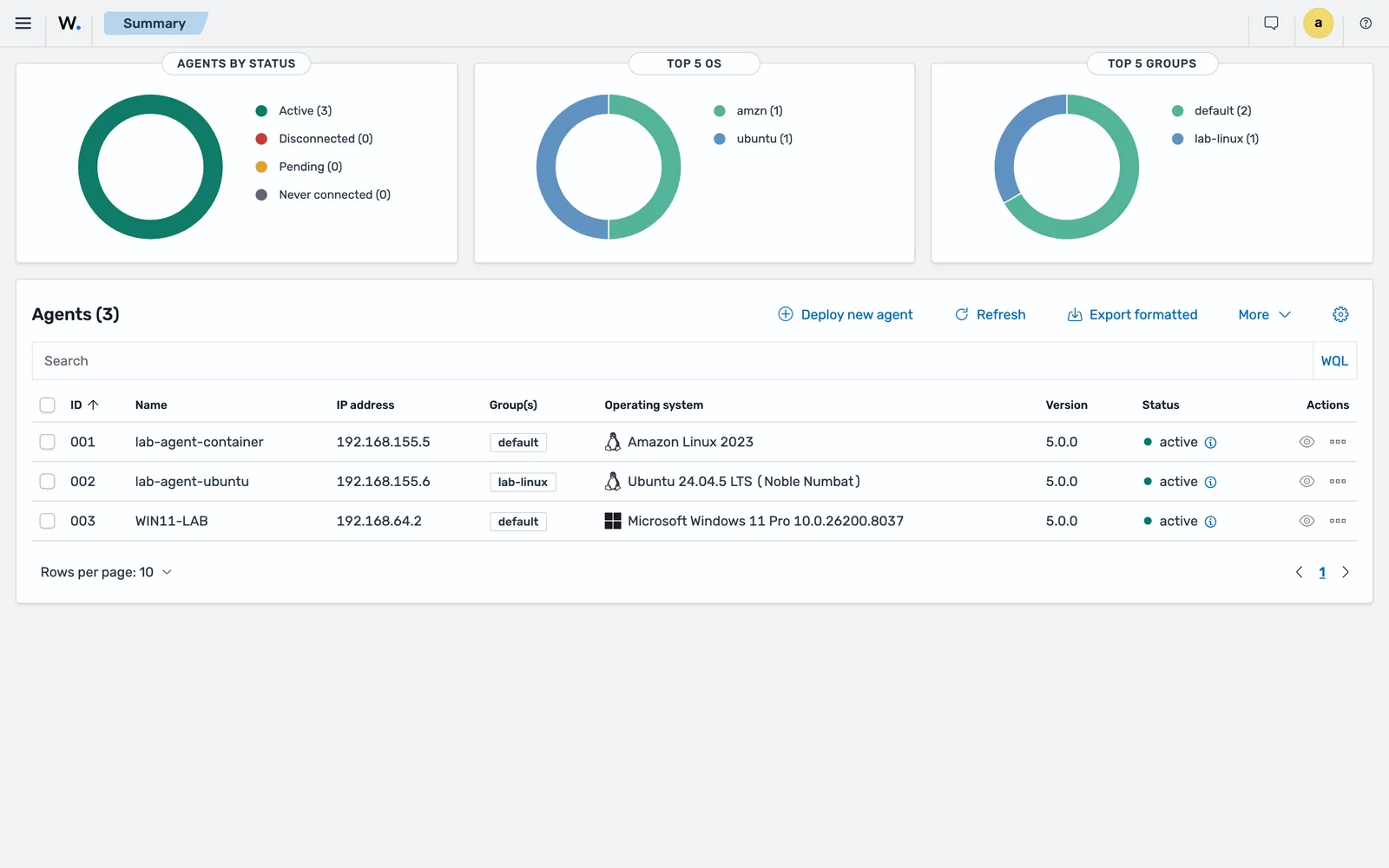
The manager API says the same thing, and it is the form to use in a rollout script:
{
   "os": {
      "name": "Microsoft Windows 11 Pro",
      "platform": "",
      "version": "10.0.26200.8037"
   },
   "ip": "192.168.64.2",
   "status": "active",
   "version": "v5.0.0",
   "id": "003",
   "name": "WIN11-LAB",
   "group": [
      "default"
   ]
}
One field to plan around: os.platform comes back as an empty string for Windows on beta5, while the Linux agents in the same response return ubuntu and amzn. If you filter a fleet inventory on os.platform, every Windows endpoint falls out of it. Filter on os.name instead until this is fixed.
Open the agent’s own page for the rest. Within a few minutes of enrolment the lab endpoint had run a configuration assessment against the CIS Microsoft Windows 11 Enterprise Benchmark and had findings mapped to ATT&CK tactics:
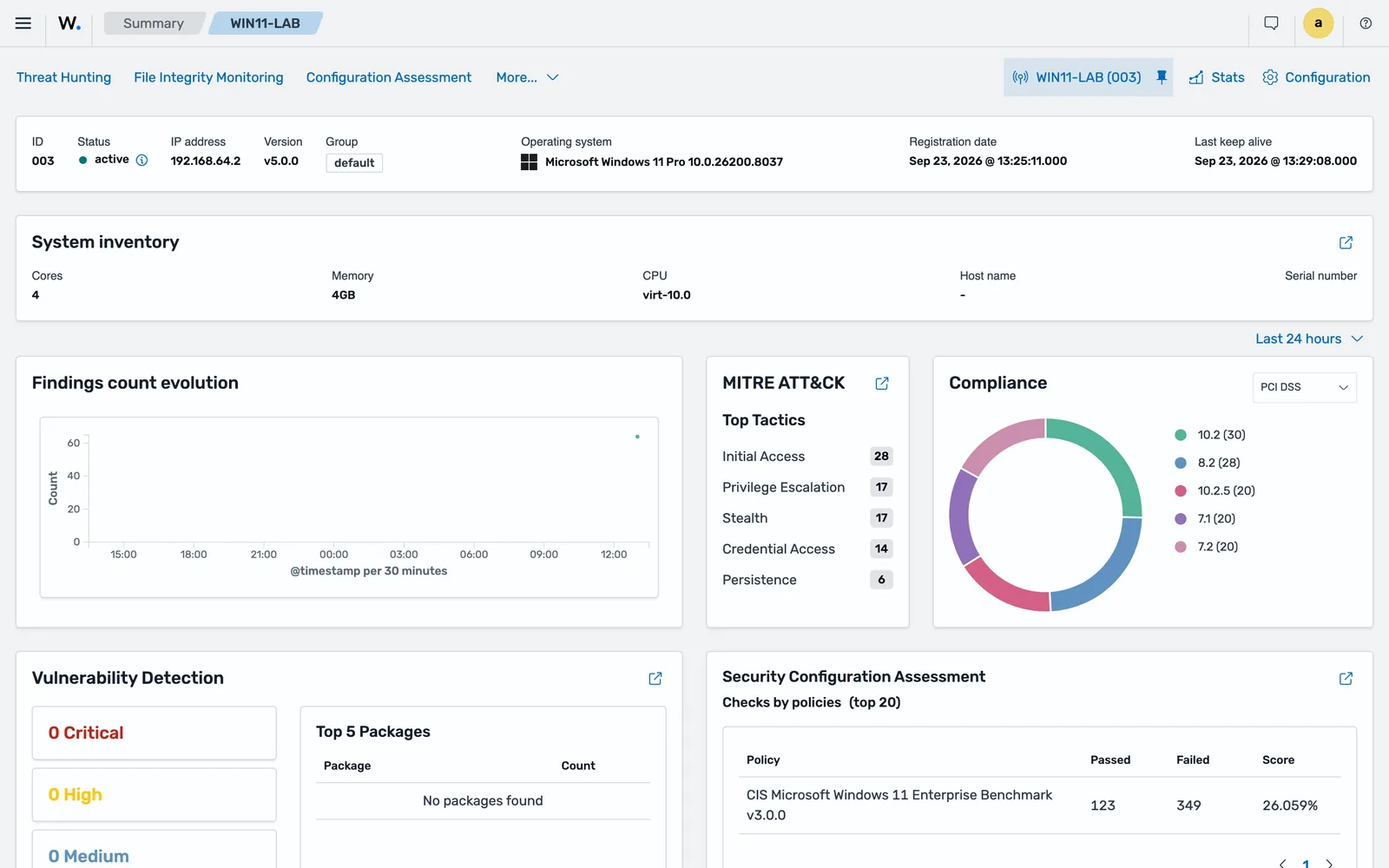
That benchmark score is the default policy running unprompted on a stock install, not something this lesson configured. Read it in configuration assessment against a CIS benchmark before anyone treats 26 per cent as an incident.
What arrives in the first hour, and why it is mostly noise
Know this before you enrol a fleet on a Monday morning. One idle Windows 11 endpoint, one hour, no user activity beyond logging in:
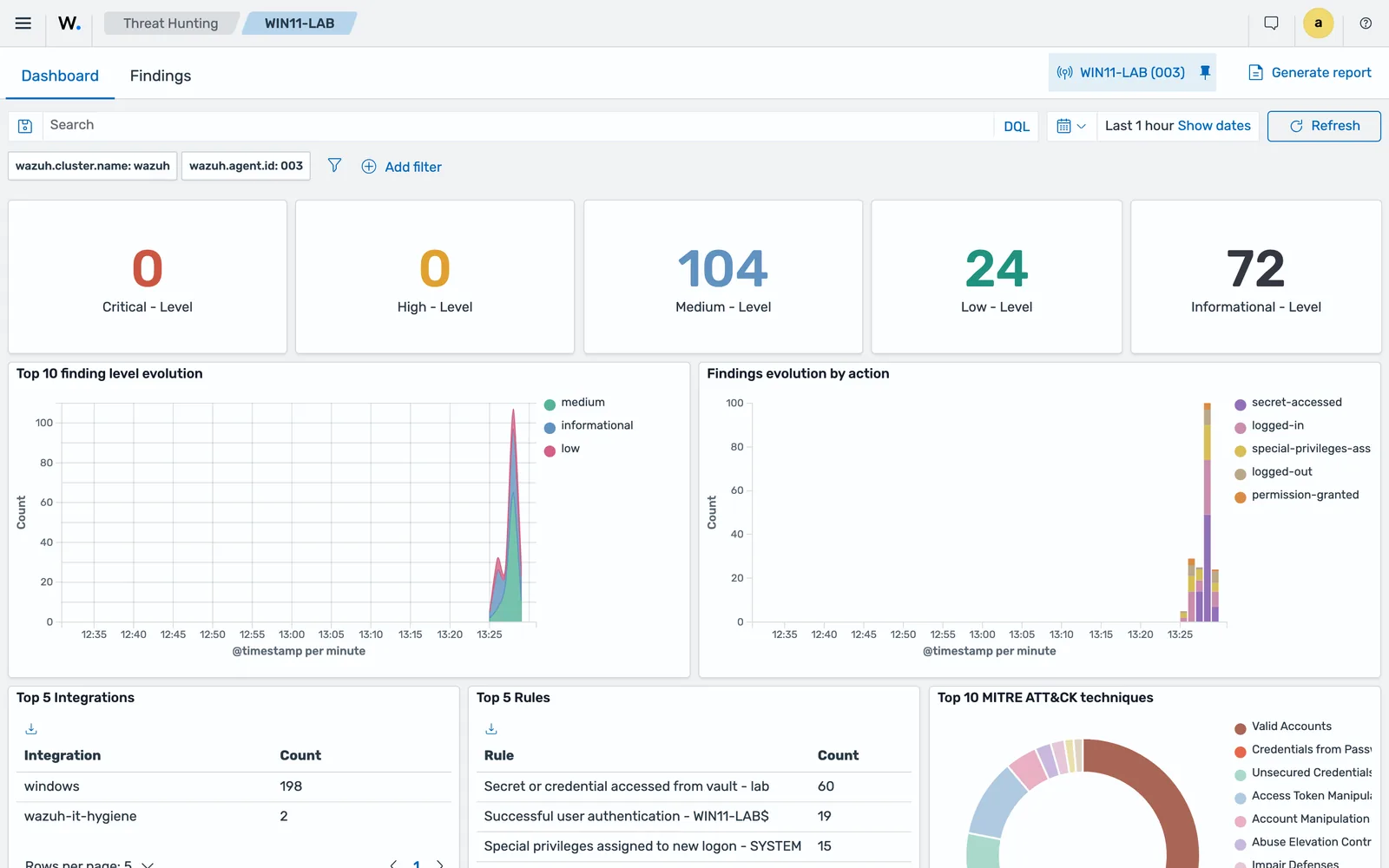
The rules producing that are Secret or credential accessed from vault, Successful user authentication, Special privileges assigned to new logon and User logged out, from event IDs 5379, 4624, 4672 and 4634. Every one of them is normal Windows behaviour. The ATT&CK panel obligingly maps them to Valid Accounts, Credentials from Password Stores and Access Token Manipulation, which reads alarming and means nothing on its own.
The lesson is about ordering. Enrol a pilot ring, watch what a quiet endpoint produces, and tune before you onboard the fleet. The single biggest contributor here is 4672, medium severity, fired for every logon carrying administrative privileges, which on a workstation means every logon by its owner. Decide what you want to do with that before it arrives a thousand times an hour.
Windows event log collection is not part of this lesson, but the agent does not arrive empty either. The installer writes four <localfile> blocks: the Application, Security and System channels as eventchannel, plus active-response\active-responses.log as syslog. The Security block ships with an XPath query that already excludes the noisiest event IDs. So a freshly installed Windows agent starts sending security events immediately, which is a volume decision made for you. Tuning it, and adding channels such as PowerShell and Defender, belongs in log collection with eventchannel and XPath, configured through the group rather than on the endpoint.
Uninstall
With the original MSI in the working directory:
msiexec.exe /x wazuh-agent-5.0.0-beta5.msi /qnThen remove what the installer leaves behind. From CMD:
rmdir /s /q "C:\Program Files (x86)\ossec-agent\"Removing the package does not delete the agent record on the manager. That record keeps the agent ID, the name and the key, and it will sit in the Disconnected count until you delete it through the dashboard or with DELETE /agents on the manager API. Anti-tampering, which forces an uninstall to be authorised by the manager, is Linux only in 5.0, so nothing blocks a local administrator from removing the Windows agent.
Common errors
A connection attempt failed because the connected party did not properly respond after a period of time (...)
The PowerShell TCP test to 1517 or 55000 timed out. Either a firewall is in the way, or the manager is not listening where you think.
Fix: open 1517/TCP outbound from the endpoint and inbound on the manager. The MSI creates no firewall rule, but it does not need one, because the agent connects outbound. If the network path is clear and it still fails, check the manager listener binding. The beta enrolment requirements page claims <remote><https><bind_addr> defaults to 127.0.0.1, which would refuse every remote agent. Verified on a 5.0.0-beta5 stack, the shipped value is 0.0.0.0, so the documentation is wrong and the listener is rarely the cause. Read the value on your own manager anyway, in case someone changed it.
WARNING: Rejected 1 request(s) in the last 90 s whose token fell outside the accepted time window (stale_token).
In the manager log, at the moment a Windows endpoint enrols. The endpoint’s clock is far enough from the manager’s that the JWT on its request had expired before it arrived. Virtual machines are the usual source, because a guest reading the hardware clock as local time rather than UTC is out by exactly its timezone offset.
Fix: the 5.0 agent self-corrects, so the enrolment usually succeeds on the retry and you see Valid key received anyway. Do not leave it there. Fix the clock properly, or every request pays for a correction and a genuine drift later will be invisible in the noise. The disconnected-agent lesson has the agent-side line, the manager-side warning and the fix.
ERROR: Invalid agent name: localhost.localdomain (from manager)
In C:\Program Files (x86)\ossec-agent\ossec.log, usually next to ERROR: Unable to add agent (from manager). Two endpoints presented the same name, or the name already belongs to an existing record.
Fix: set a unique <agent_name> under <enrollment> and restart the service. Delete the stale record on the manager if it is holding the name. This is the single most common failure in an image-based Windows rollout, because every clone boots with the template hostname until the rename applies.
WARNING: (1404): Authentication error. Wrong key or corrupt payload. Message received from agent '001' at 'any'.
Seen in the manager log at /var/wazuh-manager/logs/wazuh-manager.log. The key in C:\Program Files (x86)\ossec-agent\client.keys does not match the manager’s copy in /var/wazuh-manager/etc/client.keys.
Fix: re-enrol the endpoint. The usual cause is a client.keys baked into an image, so that every clone claims the same identity.
The service installs but will not start
Check ossec.log in the agent folder first. If the file is empty or absent, the service never reached its first write, which usually means the configuration file failed to parse after a hand edit. Restore the file, re-apply the <agent> block carefully, and remember that the agent file uses <ossec_config> as its root, not the manager’s <wazuh_config>.
Where to go next
The official page for this install is Deploying Wazuh agents on Windows endpoints, and the property behaviour behind the enrolment is in the agent-manager protocol migration guide.
Two pages pair with this one. Agent enrolment explained covers what the handshake actually does, including the API route you want for a scripted rollout. Agent disconnected or never connected is the page to keep open during a fleet deployment. For the Linux side of the same job, see installing the agent on Linux, and for where everything lives afterwards, the ports, paths and log files reference.
Next: Wazuh Agent Enrolment Explained.
Files for this lesson
Every file this lesson refers to, exactly as used. Open a file to read it in the browser, or download the set as a zip. Download wazuh-agent-windows.zip. The full set for all lessons is at wazuh-tutorial-files.zip.
Install-WazuhAgent.ps16.1 KBREADME.md3.1 KBossec.conf.fragment.xml3.1 KB
Frequently asked questions
What is the Wazuh agent MSI silent install command?
Run the MSI with /q and the deployment properties on the same line, for example msiexec /i wazuh-agent-5.0.0-beta5.msi /q WAZUH_MANAGER="10.0.0.2" WAZUH_REGISTRATION_PASSWORD="XXXXXXXXXXXX". Those two properties are the only ones the 5.0 beta installation guide documents. On a lab Windows 11 endpoint that command returned exit code 0 and enrolled the agent in about three seconds. Omit both properties to install without enrolling.
Where does the Wazuh agent install on Windows?
The agent is a 32-bit application, so on 64-bit Windows it installs to C:\Program Files (x86)\ossec-agent and on 32-bit Windows to C:\Program Files\ossec-agent. The configuration file is ossec.conf and the log is ossec.log, both in that folder.
Can I deploy the Wazuh agent with group policy?
Yes, by assigning the MSI to computers through Software Installation. Group policy cannot pass MSI properties on its own, so either attach a transform that sets them or deploy the MSI without properties and push the configuration file separately with a startup script or group policy preference.
What is the Wazuh agent service called on Windows?
WazuhSvc. On a 5.0.0-beta5 install on Windows 11, Get-Service *wazuh* returns exactly one service: name WazuhSvc, display name Wazuh, start type Automatic, and it is left stopped by the installer. Start it with NET START WazuhSvc or Start-Service WazuhSvc. Other pages in the beta documentation say Restart-Service -Name wazuh, which does not match the package.
Does the Wazuh agent support Windows Server 2019 and 2022?
The beta packages list says Windows 10 or later, the deployment page says Windows XP through Windows 11 and Server 2022, and the enrolment requirements page says Windows 7 and later with Windows Server 2008 R2 and later. Those three statements do not agree, so test your oldest supported build before committing to it.